
Map in Snapchat (Snap Map) Explained: Features, Bitmoji Meanings, Pri0vacy & More
Snapchat is no longer just about disappearing messages or snapchat filters. It now includes features that help you stay connected in real-time. One of the most popular tools is the Snap Map. It’s a live, interactive map that shows your friends’ locations, what they’re up to, and highlights major events happening around the world.
While Snap Map helps you track where your friends are, the Snapchat Planets feature shows how emotionally close you are to them. Each one represents your place in their Best Friends list. Some users search for “Snap Map Planets,” but it’s important to know these two features are different. Snap Map shows physical locations, while planets of solar system snapchat reflect your friendship rankings.
Let’s break down everything you need to know about Snap Map in simple terms.
How Does Snap Map Work?
Snap Map shows your Bitmoji (your Snapchat character) on a world map based on where you are. Your location updates when you open the app, and your friends can see where you are unless you’ve turned on Ghost Mode Snapchat.
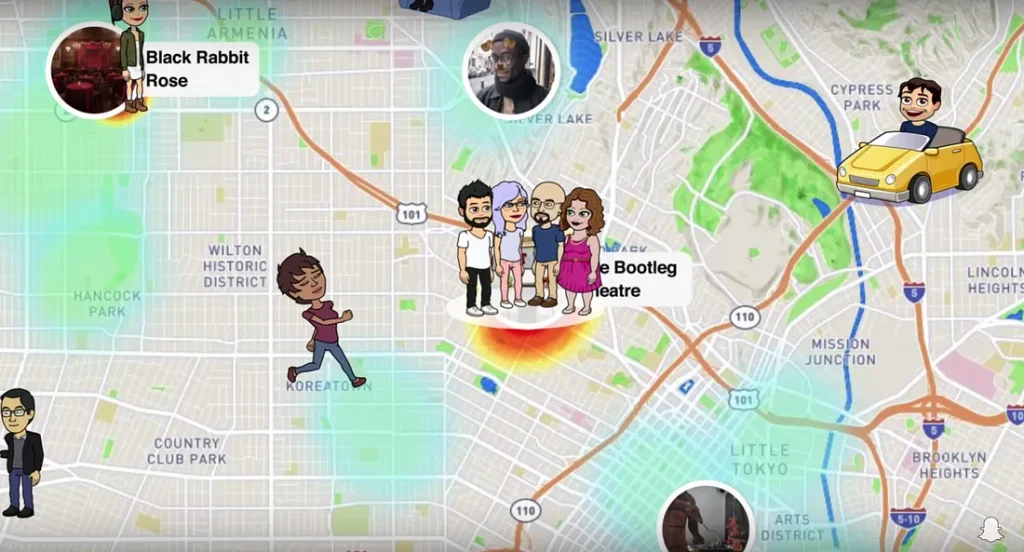
You can zoom in and out of the map, tap Bitmojis to see what your friends are up to, and even view public Stories posted in certain places.
Real-Time Location Sharing & Privacy
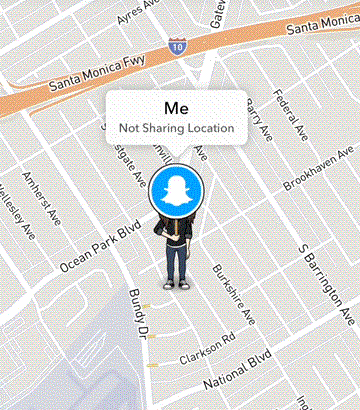
You are always in control. You can share your location with all your friends, a selected few, or with no one at all. That’s called Ghost Mode.
Snapchat does not constantly track you it only updates your location when the app is open.
Map Refresh Rate: When Snapmap Updates
Are you wondering how often your location updates on Snap Map?
Snapchat Map Accuracy: Is It Reliable?
Snap Map is mostly accurate, but it’s not perfect.
How to Access and Use Map in Snapchat
Snap Map is easy to use once you know where to find it.
- Opening the Snap Map on Mobile
- Open Snapchat and pinch the camera screen (like zooming out).
- The Snap Map will appear showing Bitmojis, heat spots, and public events.
- Accessing Snap Map on the Web
- Go to Snap Map’s website in your browser.
- You can see Stories and events but not friends’ locations.
- Enabling or Disabling Your Location
- Go to your profile.
- Tap the gear icon (Settings).
- Scroll down to “Who Can See My Location.”
- Choose your setting: Ghost Mode, Friends, or Select Friends.
Snap Map Bitmoji Icons & Meanings
Your Bitmoji can do all sorts of things on Snap Map.
Here are a few meanings:
These Bitmoji actions give a fun peek into what someone might be doing.
Want to decode more emojis on Snapchat? Check out our complete guide on Snapchat Emoji Meanings to understand what each symbol really says about your friendships and activity.
Snapmap Themed Updates & Special Events
During holidays or big world events, Snap Map often changes:
Snapchat adds cool visuals to reflect what’s going on globally.
Snap Map Glitches & Common Issues
Even though Snap Map is a fun and handy feature, it doesn’t always work perfectly. Like any app, Snapchat can have bugs or small problems that stop things from running smoothly and Snap Map is no exception.
Here are some common issues users run into while using Snap Map:
- Your Bitmoji Isn’t Showing Up
- Sometimes, your Bitmoji disappears from the map for no clear reason. If your friends tell you they can’t see you, or if you check the map and your character is missing, don’t panic. It usually means there’s a small glitch or your location sharing is turned off.
- Friends’ Locations are not Updating
- This one can be confusing. You may notice that your friends haven’t moved on the map for hours or even days. But that doesn’t always mean something is wrong Snap Map only updates when someone opens the Snapchat app. If someone hasn’t used the app in a while, their location will stay stuck until they’re back online.
- However, if you know someone’s been active but their location isn’t updating, it could be a technical issue on your end.
- Snap Map Won’t Open at All
- You pinch the screen, but nothing happens or worse, Snapchat crashes. This usually points to a glitch or a problem with the app itself. It could also mean you don’t have a strong internet connection or you’ve disabled something important in your settings.
- Map is Freezing or Lagging
- If the Snap Map loads slowly, keeps freezing, or doesn’t respond when you try to move around the screen, it might be due to your phone’s memory or app performance. Older phones or too many apps running in the background can cause this.
Simple Fixes You Can Try
If Snap Map isn’t working properly, there are a few easy things you can try. First, check if your Snapchat app is up to date using an old version often causes problems. You should also make sure location access is turned on, both in your phone’s settings and within Snapchat.
Restarting your phone can help clear small bugs, and logging out of Snapchat and back in might reset things. If you’re on Android, clearing the app’s cache (found in your phone’s app settings) can also improve performance.
Finally, check your internet connection. Snap Map needs a good signal to load and update locations. Switching from Wi-Fi to mobile data, or vice versa, can often help.
Snap Map and Relationships
Some people love Snap Map. Others? Not so much.
It can cause problems in relationships especially if someone feels they’re being “watched.”
The key is communication and privacy settings. If you’re not comfortable sharing your location all the time, turn on Ghost Mode. No need to feel pressured.
Heatmaps and Activity Insights
The Snap Map also shows heatmaps, which highlight where Snapchat activity is high.
Snapchat uses this to show where people are snapping publicly the most. It’s fun to explore events or popular spots across the world.
Frequently Asked Questions (FAQs)
Final Thoughts
Snap Map is a unique and interactive way to explore the world, connect with friends, and see what’s trending. While it offers fun features like Bitmoji animations, themed maps, and global Stories, it’s important to use it safely and control who can see your location.
Now that you know how it works, go explore Snapmap but always remember to stay in control of your privacy. If you are interested to know more about map in snapchat check out official guide from snapchat by clicking here.

I’m Vanessa Harrison, a Snapchat and social media specialist, as well as a content writer passionate about helping people make the most of their online presence. I create engaging, easy-to-follow content focused on Snapchat and social media trends, tips, and strategies. At Planet Snapchat, I combine my experience in social media with clear, informative writing to help readers stay updated and get the most out of their digital interactions.