
How to Use Snapchat Bitmoji – Full Guide to Setup & Features
You open Snapchat expecting your Bitmoji to just work, but instead you’re stuck wondering why it’s not showing up properly or why your avatar feels half-set. That confusion is exactly what most people face when they try to figure out How to Use Snapchat Bitmoji Inside Snap Inc.’s App. It looks simple on the surface, but the moment something doesn’t sync, it gets frustrating fast.
I’ve been there too. I remember spending way too long tweaking settings, thinking I messed something up, when in reality I had just missed a small connection step between Snapchat and Bitmoji. And honestly, that kind of thing gets old when you just want it to work and move on.
The tricky part is that Bitmoji isn’t just a sticker feature. It quietly connects to your profile, chats, and even how your friends see you, so one small setup issue can throw everything off. That’s why so many users feel stuck even though they’ve already installed everything correctly.
In this guide, I’ll break it down in a simple, no-confusion way so you can actually use your Bitmoji without guessing what went wrong.
If you’re also exploring Snapchat a bit deeper, you might find Snapchat Planets, Snapchat Score, and Snapchat Emoji Meanings are helpful for understanding how everything connects inside the app.
What is Snapchat Bitmoji, and how does it work on Snapchat?
A Bitmoji is an avatar version of you. Snapchat allows you to customize your cartoon or avatar to reflect your personality, like real-life style clothes, face shape, hair color, and many more things you can customize. After creation and finalizingcreating your cartoon, your Bitmoji becomes part of your profile.
Snapchat Bitmoji Meanings You Should Know
Your Bitmoji does more than just sit in your profile; it speaks. From facial expressions to pose styles, Snapchat uses Bitmoji to display your mood, activity, and interactions:
How to Create a Snapchat Bitmoji?
Steps to Create a Bitmoji Avatar with Snapchat:
- Open Snapchat and tap your profile icon.
- Find the settings gear in the top right corner.
- Tap Bitmoji and then tap Create My Avatar.
- Choose your gender.
- Customize everything from hairstyle to outfits.
- Tap Save Avatar, and your Bitmoji appears in your profile.
Create a Bitmoji Avatar with the Bitmoji App
Prefer using the dedicated Bitmoji app? Here’s how:
- Download the Bitmoji app.
- Tap Continue with Snapchat.
- Take a selfie (optional) to auto-generate your avatar.
- Customize it using detailed features like face shape, eyebrows, clothes, and more.
- Tap Save Avatar.
- Tap Agree & Connect to sync it with your Snapchat.
Now your new Bitmoji is live!
Make a Bitmoji and Add It to Snapchat
Snapchat doesn’t just show your Bitmoji; it uses ituses it it dynamically:
Snapchat Bitmoji Poses Meaning Explained
Snapchat rotates Bitmoji poses to reflect your status. For example:
Using Bitmoji on Different Platforms
You can use your Bitmoji on Snapchat, Gmail, and even in messaging apps like WhatsApp. Just install the Bitmoji keyboard or Chrome extension to start sharing your avatar anywhere.
Snapchat vs. Bitmoji App: What’s the Difference?
Snapchat uses Bitmoji for fun in-app features, while the Bitmoji app is where you create and customize your avatar.
| Feature | Snapchat App | Bitmoji App |
| Avatar Creation | Yes | Yes |
| Snap Integration | Yes | No |
| AR Filters | Yes (with Bitmoji) | No |
| Outfit Preview | Limited | Full Catalog |
The Bitmoji app gives you more editing options, while Snapchat adds interactive features.
Other Apps Where Bitmojis Work
You can use your Bitmoji in the following:
Curious about the Snapchat Eyes 👀 icon? Find out what the eyes mean on a Snapchat Story in our full guide: What Do the Eyes Mean on a Snapchat Story?
Can YouWhere You Can Use Bitmojis?
You can use Bitmojis in Snapchat chats, Snaps, Snap Map, and even on your profile. They’re also available in other apps like iMessage, Gmail, and more with the Bitmoji keyboard.
- Bitmoji in Snapchat Chats & Stories
- Snapchat auto-generates Bitmoji stickers for use in:
- Private chats
- Snap replies
- Story comments
- Bitmoji Stories
- Snapchat auto-generates Bitmoji stickers for use in:
- Bitmoji in Gboard, Emails & Social Media
- To use Bitmoji on Gboard:
- Download the Bitmoji app
- Enable Bitmoji on Gboard
- Tap the emoji icon > Bitmoji tab to send in texts or DMs
- To use Bitmoji on Gboard:
It also works in emails and posts—just copy/paste from the Bitmoji app.
What is a 3D Bitmoji onBitmoji on Snapchat?
A 3D Bitmoji on Snapchat is your animated avatar that appears in fun poses and scenes. You’ll see it on your Snap Map, profile, and even in AR lenses.
- Understanding 3D Bitmoji Snapchat Features
- 3D Bitmoji turns your avatar into a life-like character that appears on your Snap Map and AR lenses.
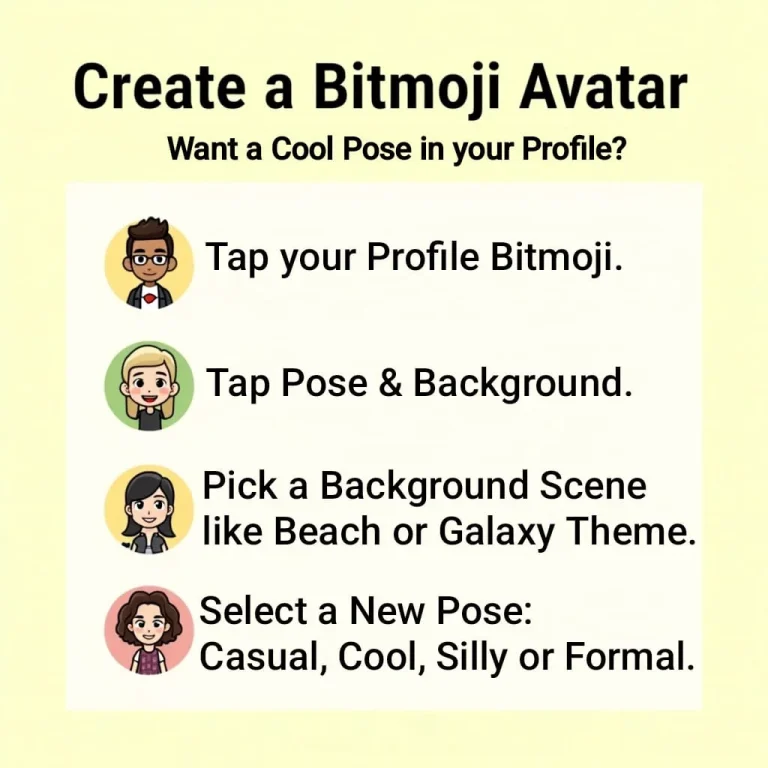
- Below are the steps to activate Bitmoji:
- Open Snapchat > Tap your Bitmoji
- Tap Pose and Background
- Choose an animated background, outfit or new pose,
Bitmoji Dance Snapchat Explained
Snapchat features Bitmoji Lenses like “Bitmoji Dance Party,” where your 3D avatar performs animations like breakdancing, flossing, or moonwalking in AR. Just search for these lenses in the camera and place your avatar in the real world!
How Do I Customize My 3D Bitmoji Header?
The image below illustrates simple steps on how to create and customize your Snapchat Bitmoji avatar.
Snapchat Bitmoji Outfits and Ideas
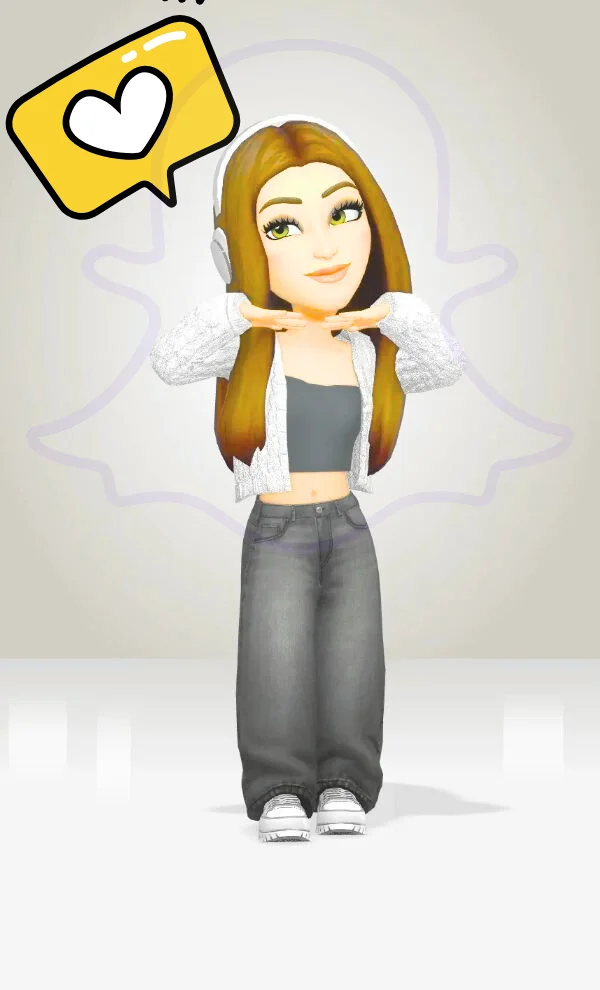
Snapchat Bitmoji outfits let you dress your avatar in styles that match your vibe: casual, sporty, glam, or seasonal. You can change outfits anytime to suit your mood or special occasions.
Whether you’re feeling cozy in a hoodie, dressing up for a virtual party, or showing off holiday spirit with festive attire, Snapchat Bitmoji’s wardrobe keeps it fun and fresh.
New collections drop regularly, including brand collabs and themed outfits. Try pairing your look with matching Bitmoji poses or backgrounds for extra flair in chats, stories, and your Snapchat Planets profile.
How to Change Snapchat Bitmoji Outfits
You can change outfits from the following:
Best Snapchat Bitmoji Ideas for 2025
Here are top outfit themes trending in 2025:
- Cozy Core—oversized hoodies & fuzzy boots
- Futuristic Chic—holographic jackets, space buns
- Eco-Friendly – recycled denim, leaf-print tees
- Retro Vibes – ‘90s baggy jeans, chokers
- Athleisure – branded tracksuits and snapbacks
Snapchat Bitmoji Poses & Meanings
Snapchat Bitmoji poses change based on your mood, location, or activity on the app. Each pose adds a fun, subtle way to show what you’re up to or how you’re feeling.
- Snapchat Bitmoji Hearts Around Head Meaning
- This indicates you’re one of someone’s top best friends on Snapchat, based on regular snap exchanges. It’s similar to how the yellow heart Snapchat and red heart Snapchat emojis reflect strong Snap friendships.
- Purple Ring Around a Bitmoji on Snapchat
- The purple ring means the person has an active Snapchat story that includes videos.
Change Bitmoji Appearance and Expressions
You can also tweak:
How to Remove Bitmoji from Snapchat
To remove your Bitmoji from Snapchat, go to your profile, tap on Bitmoji, then choose “Remove My Bitmoji.” This will unlink it from your account.
How to Delete Bitmoji from Snapchat
- Go to Snapchat Profile > Settings > Bitmoji
- Tap Unlink My Bitmoji
- Confirm removing your avatar from Snapchat
How to Delete Snapchat Bitmoji Completely
If you want it gone from both the Snapchat and Bitmoji apps:
- Open Bitmoji App
- Go to Settings > My Data > Reset Avatar
- This deletes your avatar across all platforms
Snapchat Profile Picture Not Bitmoji—What to Do?
If you don’t want a Bitmoji as your Snapchat profile picture, you can unlink it. Your profile will then show the default ghost icon or your Snapcode image.
- Switching from Bitmoji to a Regular Profile Picture
- Like other social platforms, Snapchat does not allow regular profile pictures. If you unlink the Bitmoji, then Snapchat will revert to the ghost icon. But unfortunately, you can not upload your personal photo as a profile picture.
What Do You Think of Bitmoji?
Bitmoji is a fun way to show off your personality in a cartoon style. It adds a playful, personal touch to chats and your Snapchat profile.
Community Opinions and User Reviews
Many users love Bitmoji for being fun and expressive. Reviews often highlight:
Frequently Asked Questions (FAQs)
Final Thoughts
At the end of the day, using Snapchat Bitmoji isn’t as complicated as it first feels. Most of the confusion comes from small setup steps that are easy to miss, not from anything difficult inside Snap Inc.’s app itself. Once everything is properly linked, your Bitmoji becomes a natural part of your chats, stories, and profile without you having to think about it.
I’ve noticed that once people get it working the way it should, they usually stop overthinking it and just enjoy using it. That’s really the goal here, making your Snapchat feel more personal without the constant setup frustration.
If you take one thing from this guide, it’s this: get the connection right once, and everything else falls into place. From there, you can just have fun with it and move on to other features like [Snapchat Planets], [Snapchat Score], and [Snapchat Emoji Meanings] whenever you want to explore more.

I’m Vanessa Harrison, a Snapchat and social media specialist, as well as a content writer passionate about helping people make the most of their online presence. I create engaging, easy-to-follow content focused on Snapchat and social media trends, tips, and strategies. At Planet Snapchat, I combine my experience in social media with clear, informative writing to help readers stay updated and get the most out of their digital interactions.