
How to Delete Account in Snapchat & Reactivate on Android/iPhone

How to Delete Account in Snapchat is simple, but the process works a little differently compared to other social apps. When you begin deletion, Snapchat first deactivates your account for 30 days. During this period, your Snapchat friends cannot contact you, but you can still log back in if you change your mind. After 30 days, the account is permanently deleted along with your chats, memories, and profile data.
You can begin the deletion process either from the Snapchat app or through the accounts portal. In this guide, we’ll show you how to delete account in Snapchat, how to reactivate it if needed on Android or iPhone, and what happens once your account is permanently removed.
Want to know your place in your friends’ Snapchat galaxy? Learn the complete Snapchat Planets order and see what each planet means!
👉 Check out the Snapchat Planets Order
Key Takeaways – How to Delete and Reactivate Account in Snapchat Easily
Why Do People Delete Snapchat?
Many people decide to delete Snapchat for personal reasons. It could be for mental health, saving time, or wanting more real and meaningful connections.
Reasons for Deleting Your Snapchat Account
- Mental Health and Well-being: Snapchat can sometimes create pressure. The fear of missing out and constant social comparison may hurt self-esteem. Some people delete the app to reduce anxiety and feel better.
- Reduce Screen Time: Spending too much time on Snapchat can waste hours daily. By deleting it, users free up time for hobbies, family, or personal growth.
- Improve Focus and Productivity: Without Snapchat notifications, people can focus more on school, work, or real-life goals. This helps them stay more productive.
- Better Relationships: Snapchat often encourages quick, surface-level connections. Many users prefer deeper, face-to-face conversations. Removing the app makes it easier to connect more genuinely.
- Privacy Concerns: Some users worry about how their data, chats, or photos may be stored or shared. Deleting the account helps them feel more secure.
- Loss of Interest: For others, Snapchat simply loses its charm over time. When the app no longer feels useful or fun, they decide to delete it.
Below we will explain in detail How to delete account in Snapchat & Reactivate on any device.
Deactivation vs. Deletion: What’s the Difference?
Snapchat gives you two options when you want to leave. You can deactivate your account or delete it. Both start the same way, but the result is different.
- Deactivation
- It is a temporary pause.
- Your profile, snaps, and chats are hidden for 30 days.
- You can log in anytime within 30 days to reactivate.
- Once you log back in, your account works as normal.
- Deletion
- First, your account is deactivated for 30 days.
- If you do not log in during this time, Snapchat deletes your account permanently.
- All snaps, chats, memories, and settings are gone forever.
- Some purchase or legal data may still be saved by Snapchat.
In short, deactivation is like a break, but deletion is permanent.
Curious about how Snapchat ranks your best friends like planets? 🌍 Explore the complete Snapchat Planets Order and discover what each planet says about your friendship level.
Checklist Before Deleting Your Snapchat Account
Before you delete Snapchat, take a few important steps. This will help you save your data and avoid problems later.
- Back Up Your Data: Save your chats, memories, and other history.
- Log Out of All Devices: Make sure no one else can access your account.
- Remember Your Password: You need it to confirm deletion.
- Understand the Process: Your account is deactivated for 30 days before permanent deletion.
- Think Again: If unsure, you can keep your account deactivated instead of deleting it.
How to Back Up Necessary Files from Snapchat?
Snapchat lets you save a copy of your account data. This includes login history, chats, snaps, memories, friends list, and even Bitmoji. By downloading this, you can keep your important files safe before deletion.
How to Download Your Snapchat Data on Desktop?
- Open a browser and go to accounts.snapchat.com.
- Log in with your username and password.
- Click on My Data.
- Select the files you want to save.
- Confirm your email and wait for Snapchat to send you a download link.
- Open the email and download the .zip file.
How to Download Your Snapchat Data on Android or iPhone?
- Open the Snapchat app and go to Settings ⚙️.
- Scroll down to My Data.
- Log in again if asked.
- Select your data and confirm your email.
- Snapchat will email you a download link.
- Open the link and save the .zip file on your phone.
How to Delete Account in Snapchat Permanently?
Deleting your Snapchat account is a two-step process. First, your account will be deactivated for 30 days. During this time, your friends won’t be able to contact you on Snapchat. If you don’t log back in within those 30 days, your account will be permanently deleted. But if you change your mind and log in again, the deletion will be cancelled.
Here’s how to delete account in Snapchat from both desktop and mobile:
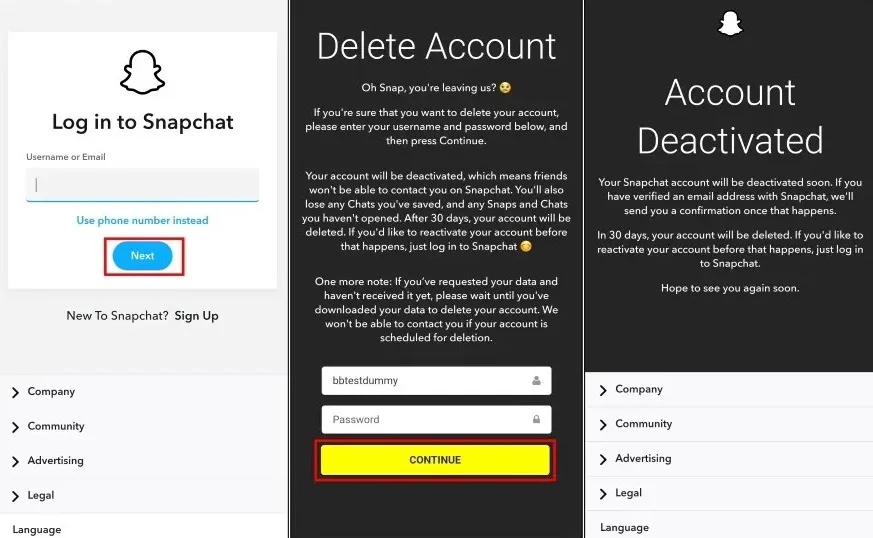
Method 1: How to Delete Account in Snapchat from Desktop Site
- Go to the Snapchat Accounts Portal: Open your browser and visit accounts.snapchat.com.
- Log in: Enter your Snapchat username and password.
- Choose “Delete My Account”: Select the option and confirm your password again.
- Confirm Deletion: Click on Continue to complete the process.
- Deactivation Period: Your account will remain deactivated for 30 days and will be deleted permanently after that if you don’t log in again.
Method 2: Delete Snapchat Account from Android or iPhone
You can also delete your Snapchat account directly from the mobile app.
- Open Snapchat: Launch the Snapchat app on your phone.
- Go to Settings: Tap your profile icon and then the gear icon ⚙️ in the top right corner.
- Scroll to Account Actions: Find and tap Delete Account.
- Login Again: You’ll be redirected to the Snapchat Accounts Portal, where you need to enter your username and password.
- Confirm Deletion: Tap Continue to proceed.
- Deactivation Period: Your account will be deactivated for 30 days and will be permanently deleted if you don’t log back in.
By following the steps above, you should now have a clear understanding of How to Delete Account in Snapchat on both Android and iPhone.
How to Deactivate Your Snapchat Account?
Unlike some other social media platforms, Snapchat doesn’t have a separate deactivation option. Instead, when you start the deletion process, your account is first temporarily deactivated for 30 days.
During this time, your friends won’t be able to contact or interact with you on Snapchat. If you log back in within those 30 days, your account will be reactivated. However, if you don’t return, Snapchat will automatically delete your account permanently after 30 days.
Deactivate Snapchat Instead of Deleting
Here’s how you can temporarily deactivate your Snapchat account (through the deletion process):
- Open Snapchat: Launch the Snapchat app on your mobile device.
- Go to Profile: Tap your profile icon at the top left of the screen.
- Access Settings: Tap the gear icon in the top right corner.
- Find Delete Account: Scroll down to the “My Account” section and select Delete Account.
- Confirm Deletion: You’ll be redirected to the account portal, where you need to enter your password again and confirm the deletion request.
- Reactivation (Optional): If you change your mind within 30 days, simply log back in to your Snapchat account, and it will be automatically reactivated.
In short, the only way to “deactivate” Snapchat is to begin the deletion process and then log back in within 30 days if you decide to keep your account.
If you’re looking to manage your interactions before deleting your account, you might want to explore your Snapchat Galaxy to see how your friends are ranked or create fun conversations by starting a group on Snapchat.
How to Reactivate a Deactivated Snapchat Account?
If you change your mind after deactivating Snapchat, you can bring your account back. The process is simple but must be done within 30 days.
- Open Snapchat: Launch the app on your phone or visit the website.
- Log In: Enter your username and password. (Email or phone number won’t work.)
- Reactivate: If you are still in the 30-day window, Snapchat will ask if you want to reactivate. Select “Yes.”
- Wait: Snapchat may take a few moments. You might see a “Please wait a few moments” message.
- Confirmation: You may get an email confirming reactivation.
- Access: Log in and start using your account again.
Important Notes:
- 30-Day Limit: After 30 days, your account is permanently deleted.
- Username Only: Reactivation works only with your username and password.
- Temporary Disable: If you still can’t log in, wait 48 hours and try again.
What Happens After You Delete Your Snapchat Account?
When you delete your Snapchat account, it doesn’t disappear right away. Instead, Snapchat keeps it in a hidden state for 30 days before removing it forever.
The 30-Day Recovery Period
- Your account goes into deactivation mode for 30 days.
- During this time, no one can see your profile or send you snaps.
- Your friends won’t find you in their friend list.
- Your data is stored but not visible.
- If you change your mind, you can log back in within 30 days to reactivate your account.
What Happens to Your Data and Friends List?
- After 30 days, Snapchat permanently deletes your account and data.
- Your friend list, chats, and snaps are removed from Snapchat’s servers.
- Your username may become available to someone else.
- Snapchat may still keep some data for legal or security reasons (as explained in their Privacy Policy).
Alternatives to Deleting Snapchat
I hope you now understand how to delete account in Snapchat. However, if you decide not to delete your account, there are other options to reduce usage, improve privacy, or simply take a break.
- Adjust Snapchat Settings
- Privacy controls: Limit who can see your stories, add you, or view your location.
- Notifications: Turn off or mute notifications to avoid constant checking.
- Clear data: Delete chat history or saved content to free space and reduce your footprint.
- Log out: Just log out instead of deleting your account if you need a short break.
- Use Other Platforms
- Instagram: Similar features like stories, chats, and photo sharing.
- WhatsApp: Great for private messaging, voice, and video calls.
- Signal: A safe messaging app with strong encryption.
- Telegram: Fast and secure app with extra privacy tools.
- Take a Break
- Delete the app: Remove Snapchat from your phone to stop notifications and scrolling.
- Deactivate account: Temporarily deactivate it. You can log back in later if you change your mind.
- Other Tips
- Download your data: Save your memories before making changes.
- Use a VPN: Add extra privacy and security while using social apps.
Frequently Asked Questions (FAQs)
Final Thoughts
Understanding how to delete account in Snapchat is important before making the final decision. The process isn’t difficult, but it becomes permanent after 30 days. First, your account is deactivated, and then all data is removed forever. If you change your mind, you can log back in within 30 days to reactivate it.
Before deleting, make sure to back up your data and think about other options like logging out or changing privacy settings. If Snapchat no longer feels useful, deleting it can be a healthy choice. The decision is yours: keep it, take a break, or let it go.