
How to Use Snapchat Web on Your PC or Laptop
Updated July 2026
You can use Snapchat Web on your PC or laptop by signing in at web.snapchat.com with your Snapchat account. The official browser version lets you send Snaps, chat with friends, and make voice or video calls without downloading additional software.
While Snapchat Web doesn’t include every feature available on the mobile app, it offers everything most users need for everyday conversations. It’s especially useful if your phone isn’t nearby, has a low battery, or you simply prefer using a larger screen.
In this guide, you’ll learn how to log in to Snapchat Web, set it up on your computer, explore its features and limitations, troubleshoot common issues, and get the best experience on Windows, Mac, or Chromebook.
What Is the Snapchat Web?
Snapchat Web is the official browser version of Snapchat that lets you use your account directly from a desktop or laptop. It gives you a larger screen to chat with friends, send Snaps, make voice and video calls, and stay connected without constantly using your phone.
Originally launched for Snapchat+ subscribers, Snapchat Web is now available to everyone. It works on Windows PCs, Macs, and Chromebooks, making it easy to access your account from almost any computer.
Key Features of Snapchat Web
- Chat in real time with friends.
- Send and receive Snaps in the form of a photo or video.
- Make voice and video calls.
- View Stories and Public Profiles.
- Lenses can be used in supported video calls.
- While on a video call, you can share your screen
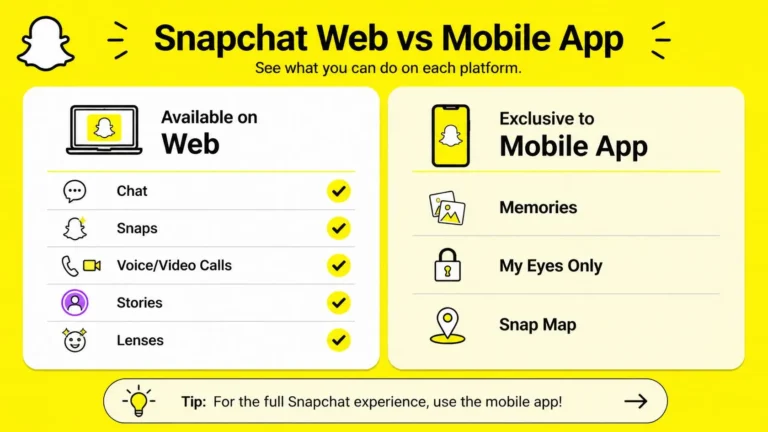
Snapchat also has access to most of your usual everyday tools, but some features didn’t make the cut – Memories, My Eyes Only and Snap Map are all still limited to the mobile app.
How to Access Snapchat Web on Your PC or Laptop?
Accessing Snapchat Web is quick and doesn’t require downloading the mobile app. If you want to use Snapchat through the web, simply open a supported browser on your computer, visit the official Snapchat Web address, and sign in with your existing Snapchat account.
Follow these steps to get started:
- Open Google Chrome, Microsoft Edge, or Apple Safari on your PC or laptop.
- Visit web.snapchat.com, the official Snapchat Web address.
- Enter your Snapchat username (or email) and password.
- Complete the verification request on your phone if prompted.
- Once you’re signed in, you’ll have instant Snapchat Web access and can start chatting, sending Snaps, and making voice or video calls directly from your browser.
The Snapchat Web browser interface is clean and easy to navigate. Your conversations appear on the left, while camera, chat, and calling features are conveniently placed for quick access. If you regularly use Snapchat Web on your computer, you can also install it as a desktop shortcut, allowing the Snapchat Web app to open like a native desktop application.
Things to Know Before You Sign In
Before using Snapchat Web, keep these important points in mind:
- Snapchat Web officially supports Google Chrome, Microsoft Edge, and Apple Safari.
- Keep your phone nearby because Snapchat may ask you to verify your identity during your first Snapchat Web login.
- You can only stay signed in on one computer at a time. Logging in on another device will automatically end your previous Snapchat Web session.
- While Snapchat Web includes chat, Snaps, voice calls, and video calls, features such as Memories, My Eyes Only, and Snap Map are currently available only in the mobile app.
Install Snapchat on Your PC or Laptop
You can use Snapchat on your computer in three simple ways, depending on whether you prefer installing an app or using your browser.
Install from the Microsoft Store (Windows)
- Open the Microsoft Store.
- Search for Snapchat.
- Select the official app and click Get or Install.
- Open the app and sign in to your account.
Install as a Desktop App (Windows & Mac)
You can also install Snapchat as a desktop app without downloading traditional software.
- Open Google Chrome or Microsoft Edge.
- Visit web.snapchat.com.
- Click the Install icon in the address bar or select Install this site as an app from the browser menu.
- Confirm the installation.
This creates a Snapchat Web desktop shortcut for quicker access.
Use Snapchat Without Installing It
If you don’t want a Snapchat Web download, simply open web.snapchat.com, sign in, verify your account if prompted, and allow camera and microphone permissions. You’ll be ready to chat, send Snaps, and make calls directly from your browser.
How to Send a Snap Using Snapchat Web?
Once you’re signed in, sending a Snap from your computer is quick and works much like the mobile app.
- Click the Camera icon from the main screen or open a friend’s chat.
- Choose a lens if you want to apply an effect.
- Click the capture button once to take a photo, or press and hold it to record a video.
- Review your Snap, then click Send To.
- Select the friend or group you want to send it to and click Send.
The Snapchat Web camera supports both photos and videos, making it easy to stay connected without picking up your phone. If your browser asks for camera or microphone access, allow the permission to use these features properly.
How to Chat on Snapchat Web?
Chatting on Web is similar to using the mobile app, making it easy to stay connected while working on your computer.
- Open a conversation from the left sidebar.
- Type your message in the chat box at the bottom.
- Press Enter to send your message instantly.
- Use emojis or react to messages to keep the conversation fun.
- Click the phone or video icons anytime to start a voice or video call.
The Snapchat Web chat feature syncs with your mobile app, so your conversations stay updated across both devices. You can also share photos and other media directly within the chat window.
How to Access My AI on Snapchat Web?
You can use My AI on Web just like you do on the mobile app. It’s a quick way to ask questions, get suggestions, or have a casual conversation without leaving your browser.
Follow These Steps
- Open the search panel on the left side of the screen.
- Select My AI from the search results or chat list.
- Type your question or message to start chatting.
- Click the back arrow when you’re finished to return to your conversations.
My AI stays synced with your Snapchat account, so you can continue your conversations across both the web and mobile app.
How to Manage Notifications on Snapchat Web?
You can control Snapchat Web notifications to reduce distractions while working or studying. You can either mute notifications from a specific friend or turn off all browser notifications.
Mute Notifications for a Friend
- Open the conversation of the friend you want to mute.
- Click their name at the top of the chat.
- Select Message Notifications.
- Choose Silent to stop receiving notifications from that conversation.
Turn Off All Notifications
- Click your profile icon.
- Select Turn Off Notifications.
- Confirm your choice to disable browser notifications.
How to Manage Chat History on Snapchat Web?
Snapchat lets you control how long conversations stay visible and remove chats from your chat feed when needed.
Change Chat Deletion Settings
- Open the conversation you want to manage.
- Click your friend’s name at the top of the chat.
- Select Delete Chats.
- Choose After Viewing or 24 Hours After Viewing.
Remove a Conversation from Your Chat Feed
- Open the same chat settings.
- Select Clear from Chat Feed.
- Confirm your choice to remove the conversation from your chat list.
How to Snapchat Web Add Friends?
You can use Snapchat Web to accept pending friend requests and grow your friends list without switching to the mobile app. However, some friend management features may still be limited on the web version.
Follow These Steps
- Open Snapchat Web and go to the left sidebar.
- Click the Add Friends icon.
- Review your pending friend requests.
- Select Accept next to the person you want to add.
Once accepted, you’ll be able to chat, send Snaps, and make calls with your new friend from Snapchat Web.
How to View Friends’ Stories on Snapchat Web?
You can also watch your friends’ Stories directly on Snapchat Web without switching to the mobile app.
Follow These Steps
- Open Snapchat Web and sign in to your account.
- Look for your friends’ Story icons at the top of the chat list.
- Click a Story to start watching it.
- Use the reply box below the Story if you want to send a response.
How to Make a Video Call on Snapchat Web?
Starting a video call on Snapchat Web is simple once you’re signed in. The feature works much like the mobile app, allowing you to connect with friends from your computer.
- Open the chat of the friend you want to call.
- Click the Video icon at the top of the conversation.
- Allow camera and microphone permissions if your browser requests them.
- Wait for your friend to answer and begin your conversation.
The video call Snapchat Web feature supports high-quality video and audio, making it a convenient option for staying connected on a larger screen. If your camera or microphone isn’t working, check your browser permissions before trying again.
Posting Stories from Snapchat Web
Yes, you can post Stories from Snapchat Web, but the process is slightly different from the mobile app. Instead of using the chat interface, you’ll need to upload your content through your Snapchat profile.
How to Post a Story
- Visit profile.snapchat.com or my.snapchat.com.
- Upload your photo or video by dragging it into the upload area or selecting Choose Media.
- Select My Story or Public Profile as your destination.
- Accept the Creator Terms if prompted, then click Post.
This feature lets you share content directly from your computer, making it easier to upload photos and videos without transferring them to your phone first.
Why Isn’t Snapchat Web Working?
If Snapchat Web isn’t opening or working properly, it’s usually caused by a browser, network, or account issue. Try these quick fixes before signing in again.
- Update your browser to the latest version.
- Clear your browser’s cache and cookies, then reload the page.
- Disable VPNs or browser extensions that may interfere with Snapchat.
- Check your internet connection and try switching to another network.
- Confirm that Snapchat isn’t experiencing a temporary outage.
- If you’re using Snapchat+, make sure your subscription is active, as some features may be limited.
If the problem continues, try opening Snapchat Web in a different supported browser or sign out and log back into your account.
What Is Snapchat Privacy Screen?
Snapchat Privacy Screen is a built-in security feature on Snapchat Web that helps keep your conversations private while using Snapchat on a computer. If you switch to another browser tab or application, the Snapchat Web interface automatically blurs your active chat to prevent others from viewing your messages.
This feature is especially useful when you’re using Snapchat in public places such as offices, libraries, classrooms, or shared workspaces.
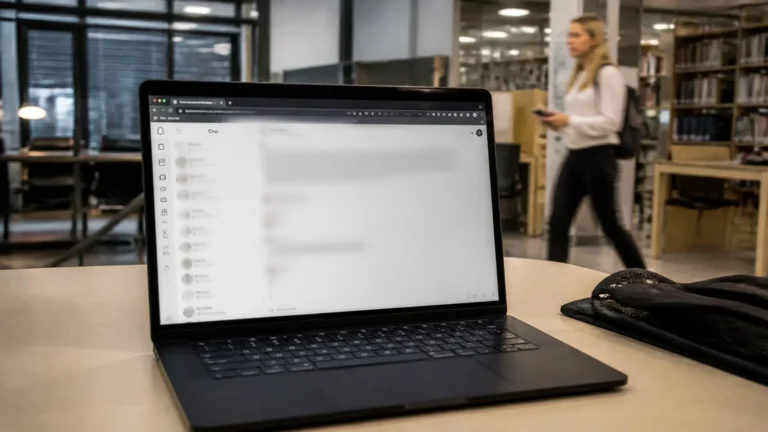
Key Benefits of Snapchat Privacy Screen
- Automatically blurs your chat when you leave the Snapchat tab.
- Helps protect private conversations from people nearby.
- Works automatically without changing Snapchat Web settings.
- Restores your conversation as soon as you return to the Snapchat window.
- Ideal for using Snapchat safely on shared or public computers.
Frequently Asked Questions
Final Thoughts
Snapchat Web makes it easy to stay connected from your PC or laptop without relying on your phone. Whether you want to chat, send Snaps, make video calls, view Stories, or manage conversations, the web version offers most of the features needed for everyday use.
Although some tools, such as Memories, My Eyes Only, and Snap Map, are still limited to the mobile app, Snapchat Web continues to improve with new updates. If you prefer a larger screen or need quick access while working or studying, it’s a convenient way to use Snapchat from your computer.

I’m Vanessa Harrison, a Snapchat and social media specialist, as well as a content writer passionate about helping people make the most of their online presence. I create engaging, easy-to-follow content focused on Snapchat and social media trends, tips, and strategies. At Planet Snapchat, I combine my experience in social media with clear, informative writing to help readers stay updated and get the most out of their digital interactions.