
What Does “Time Sensitive” Mean on Snapchat?
Time Sensitive is not a new Snapchat feature. Time Sensitive is an iPhone notification setting. Snapchat lets certain notifications through Do Not Disturb and Focus modes. This article covers the entire Time Sensitive meaning, why Snapchat uses it, and how to turn Time Sensitive off.
Time Sensitive Meaning: The Quick Explanation
Time-sensitive notifications are alerts your iPhone thinks are important enough to skip your Focus mode and Do Not Disturb. With Do Not Disturb, Sleep Focus, and Work Focus activated, your iPhone hides almost all notifications. But, with certain apps, time-sensitive alerts can be shown on the lock screen even with a Focus mode active. These alerts can also send a notification in the hour after Focus mode is deactivated.
So when you see “Time Sensitive” attached to a Snapchat notification, it simply means iOS decided this particular alert deserved priority treatment over your usual silence settings. It doesn’t automatically mean something urgent happened; it just means the notification was allowed to interrupt you.
What Do Time-Sensitive Notifications Mean?
Knowing what time sensitive notifications means requires some context. Apple added time sensitive notifications with Focus mode in iOS 15, in part, to address a gap in Apple’s handling of notifications. iPhone users were, prior to the update, offered two options: allow all notifications through or silence all notifications.
Time-sensitive notifications created a middle ground, a category that sits between routine app alerts and full emergency notifications. Apps like Find My, ride-share services, and delivery apps use this category so you don’t miss something that genuinely needs quick action, even while your phone is set to Do Not Disturb.
Snapchat adopted this same system, meaning some of your Snaps, chats, and streak reminders can now be treated the same way a ride-arrival alert would be.
Why does Snapchat uses time sensitive?
Snapchat is built around real-time back-and-forth conversation, so it makes sense that the app would want certain alerts to reach you quickly. Here’s the time-sensitive on Snapchat, meaning in practical terms, the kinds of alerts most commonly marked this way:
- Active chat replies: when a conversation is already going, and someone responds
- Snap Streak reminder: alerts warning you that a streak is about to expire
- Group chat mentions: when someone tags or replies directly to you
- Friend requests and account activity: new connections or notable account updates
It’s worth noting that Snapchat doesn’t manually flag every single message this way. Instead, both Snapchat’s internal notification logic and Apple’s Focus system work together to decide which alerts qualify. Factors like how often you talk to someone, how active a group chat is, and whether a streak is at risk can all influence sending you these kinds of notifications.
Why Does Snapchat Say Time Sensitive?
Nobody outside of Snapchat and Apple knows the reason for the time-sensitive notifications. What is known is that there is no way of knowing the content of the message from the time-sensitive label. It could be a new Snap, a chat reply, a streak warning, or a friend request. The only answer for why it is time-sensitive is that the notification was given priority.
It’s also a common misconception that this label means someone opened your Snap, or that it changes how long a Snap or Story stays visible. Snap expiration and Story duration are controlled entirely separately from the notification system.
Time Sensitive Notifications iPhone: How the Feature Actually Works
Understanding time-sensitive notifications’ iPhone behavior makes the whole thing much less mysterious.
Here’s the general process:
- An app (like Snapchat) requests permission to send time-sensitive alerts.
- iOS evaluates incoming notifications from that app based on its own rules and the app’s settings.
- If a notification qualifies, it’s marked as time sensitive.
- The alert can bypass an active Focus mode or Do Not Disturb setting.
- It appears on your lock screen and stays in Notification Center, typically visible for about an hour.
This is why you might notice Snapchat notifications getting through even when you thought your phone was completely silenced; it’s the Time Sensitive system doing exactly what it was designed to do.
Time Sensitive Notifications iPhone Meaning vs Android
If you’re on Android, you may have noticed this exact wording never shows up on your phone. That’s because time-sensitive notifications iphone meaning is tied specifically to Apple’s software.
Android doesn’t have an identical “Time Sensitive” label, but it does offer comparable tools, priority notifications, notification channels, and conversation-based alerts that serve a similar purpose of letting important messages through. The terminology is different, but the underlying goal (surfacing important alerts without a full notification free-for-all) is the same.
How to Turn Off Time Sensitive on Snapchat (iPhone)
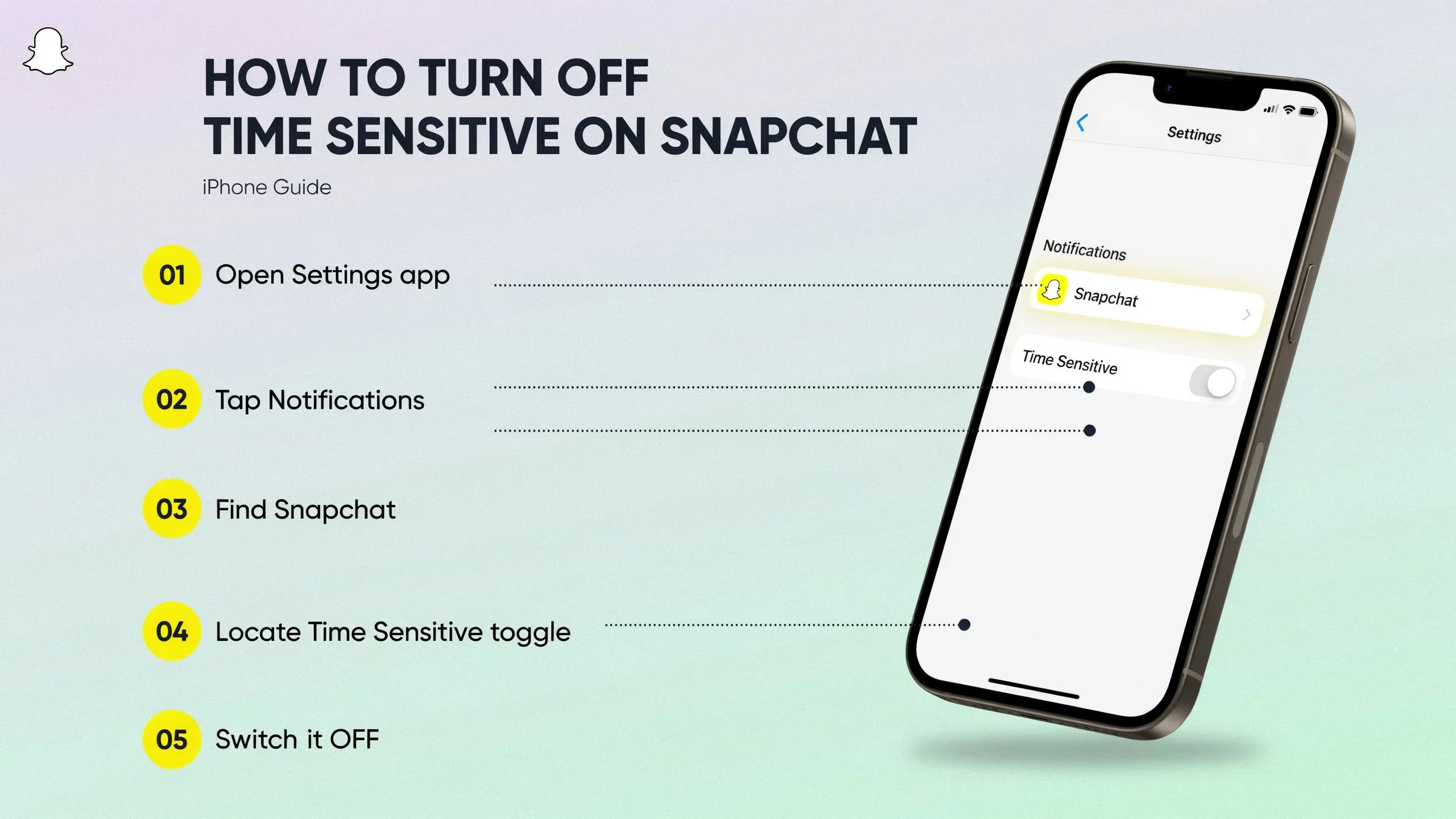
If you’d rather Snapchat respect your Do Not Disturb or Focus settings completely, disabling this feature only takes a minute. Here’s how to turn off time-sensitive on Snapchat:
- Open the Settings app on your iPhone.
- Scroll down and tap Notifications.
- Find and tap Snapchat in the app list.
- Locate the Time Sensitive Notifications toggle.
- Switch it off (it should turn gray)
Now, Snapchat notifications will follow your normal notifications and Focus rules. This means that there will be no more notifications during Do Not Disturb.
How to Turn On Time Sensitive Notifications?
If you’ve previously turned the feature off and want certain Snapchat alerts to start reaching you again, how to turn on time sensitive notifications is just the reverse of the steps above:
- Go to Settings > Notifications > Snapchat.
- Find Time Sensitive Notifications.
- Toggle it back on.
You can also manage this at the Focus level: go to Settings > Focus, choose a specific Focus profile, tap Apps, and check whether Time Sensitive Notifications are permitted for that profile. This lets you allow time-sensitive alerts during, say, your Personal Focus, while blocking them entirely during Sleep Focus.
Turn Off Snapchat Notifications iPhone: Full Control Options
Beyond limiting time-sensitive notification settings, there are additional means to control your Snapchat notifications on your iPhone:
- Disable all notifications: Settings > Notifications > Snapchat > toggle off “Allow Notifications.”
- Customize by type: Open Snapchat, tap your profile icon, go to Settings > Notifications, and choose exactly which alerts you want for chats, Snaps, stories, mentions, friend requests, and more.
- Adjust Lock Screen visibility: Reduce how prominently Snapchat alerts appear without shutting them off completely.
Using these methods, you can reconfigure your notifications instead of making the choice to not receive notifications at all.
Turn Off Snapchat Notifications Android
Due to the absence of the same time-sensitive notifications on Android, the processes are a little different. To control your notifications on Snapchat for Android:
- Open the Settings app on your Android device.
- Go to Apps (or “See all apps”).
- Find and tap Snapchat.
- Select Notifications.
- Toggle off notification types you don’t want, or turn off notifications entirely.
Many Android phones also let you adjust notification importance or enable “priority conversations” for specific contacts, giving you a similar level of control to what the iPhone offers through Time Sensitive settings.
Does Time Sensitive Affect Snap Streaks or Snap Expiration?
No, and this is one of the most common mix-ups. A time-sensitive label does not affect:
- How long a Snap stays visible after being opened
- How long a Story remains available (typically 24 hours)
- Whether your Snap Streak is maintained or lost
The notification system and Snapchat’s content expiration rules are completely separate. A time-sensitive tag is purely about notification delivery priority, not about what happens to your Snaps or streaks behind the scenes.
Difference Between Time-Sensitive and Regular Snapchat Notifications
| Feature | Time Sensitive Notifications | Regular Notifications |
| Bypasses Do Not Disturb | Yes | No |
| Stays on Lock Screen Longer | Yes (up to 1 hour) | Disappears quickly |
| Automatically selected by Snapchat | Yes | No |
| User Control | Can disable fully | Full customization |
Related Snapchat Notification Terms Explained
Snapchat loves to complicate things with different alert types. Here’s what each one means so you can choose what to keep or disable:
| Term | Meaning | Should You Keep It? |
| Time Sensitive Notifications | High-priority alerts that bypass DND or Focus Modes | Turn OFF if you value peace |
| Silent Notifications | Alerts without sound or vibration | Safe to leave ON |
| Priority / Override DND (Android) | Allows Snapchat to ring even in silent mode | Turn OFF for full control |
| Snap Streak Reminders | Notifications to save streaks with friends | Optional — depends on your streak loyalty |
| Snapchat Story Notifications | Alerts when someone posts a story | Turn OFF if it gets spammy |
Frequently Asked Questions
Final Thoughts
The “Time Sensitive” label on Snapchat can feel confusing at first, especially when it slips past a Focus mode you specifically turned on. But once you understand it’s an Apple notification feature rather than a Snapchat alert type, it makes a lot more sense.
Whether you want to keep getting these priority pings for streaks and chat replies, or you’d rather silence everything until you’re ready to check the app, the controls are simple: A few taps in Settings will grant you full control over which notifications you will get from Snapchat and when.

I’m Vanessa Harrison, a Snapchat and social media specialist, as well as a content writer passionate about helping people make the most of their online presence. I create engaging, easy-to-follow content focused on Snapchat and social media trends, tips, and strategies. At Planet Snapchat, I combine my experience in social media with clear, informative writing to help readers stay updated and get the most out of their digital interactions.